MP4 to Text: How to Transcribe Any Video File for Free
A step-by-step guide to converting any MP4 video file into text, in seconds, with no software to install.
Whether it's a recorded webinar, a screen recording, a training video, or footage you shot yourself, turning an MP4 file into readable text usually means either typing it out manually or paying for transcription software. Neither is necessary. Here's how to convert any MP4 to text for free, in seconds, with no account required.
Why Transcribe an MP4 File?
Video is great to watch, but hard to search, quote, or skim afterward. Converting it to text makes it far more useful:
- Course creators — turn video lessons into written guides or transcripts for students
- Businesses — transcribe recorded meetings, webinars, or training videos
- Content creators — repurpose video scripts into blog posts or captions
- Students — transcribe recorded lectures for studying and note-taking
- Anyone editing video — get accurate subtitles without manually timing them
Step 1: Upload Your MP4 File
Go to TranscriptAny and click the Upload file tab. This one works with actual video and audio files you upload directly — nothing needs to be posted publicly anywhere first.
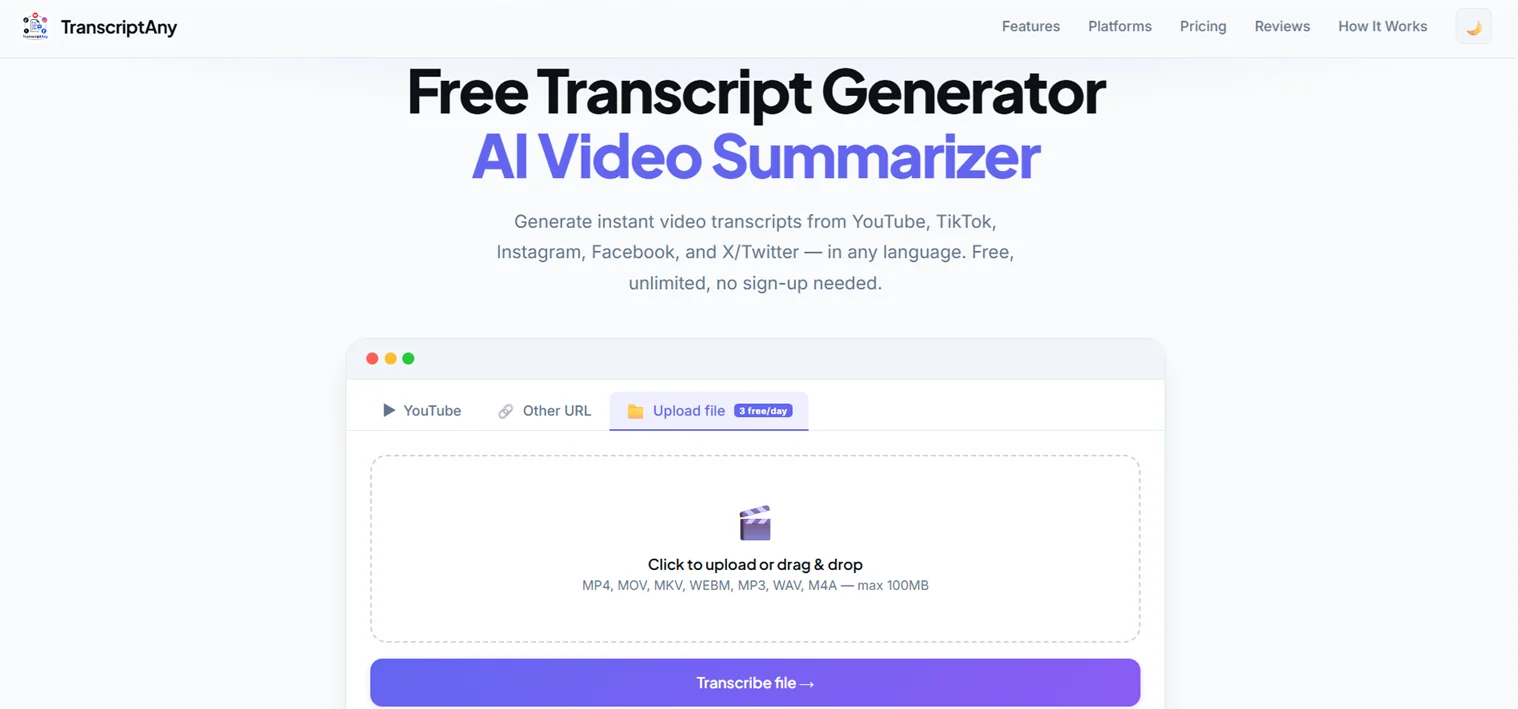
Click to browse or drag and drop your MP4 file in. TranscriptAny also supports MOV, MKV, WEBM, MP3, WAV, and M4A files up to 100MB.
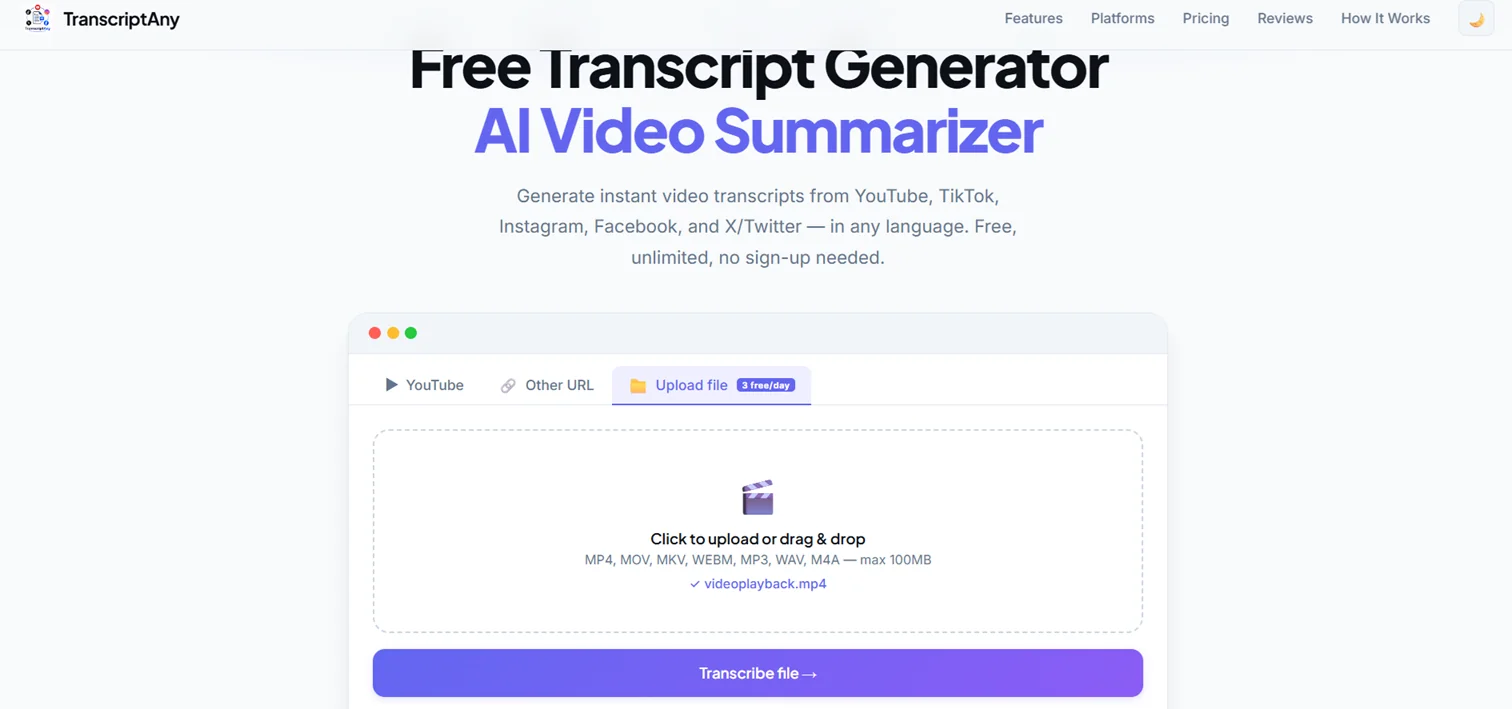
Once your file is selected, click Transcribe file.
Step 2: Get Your Transcript
Within moments, your full transcript appears — timestamped, segmented, and powered by Groq Whisper AI for accurate speech-to-text conversion.
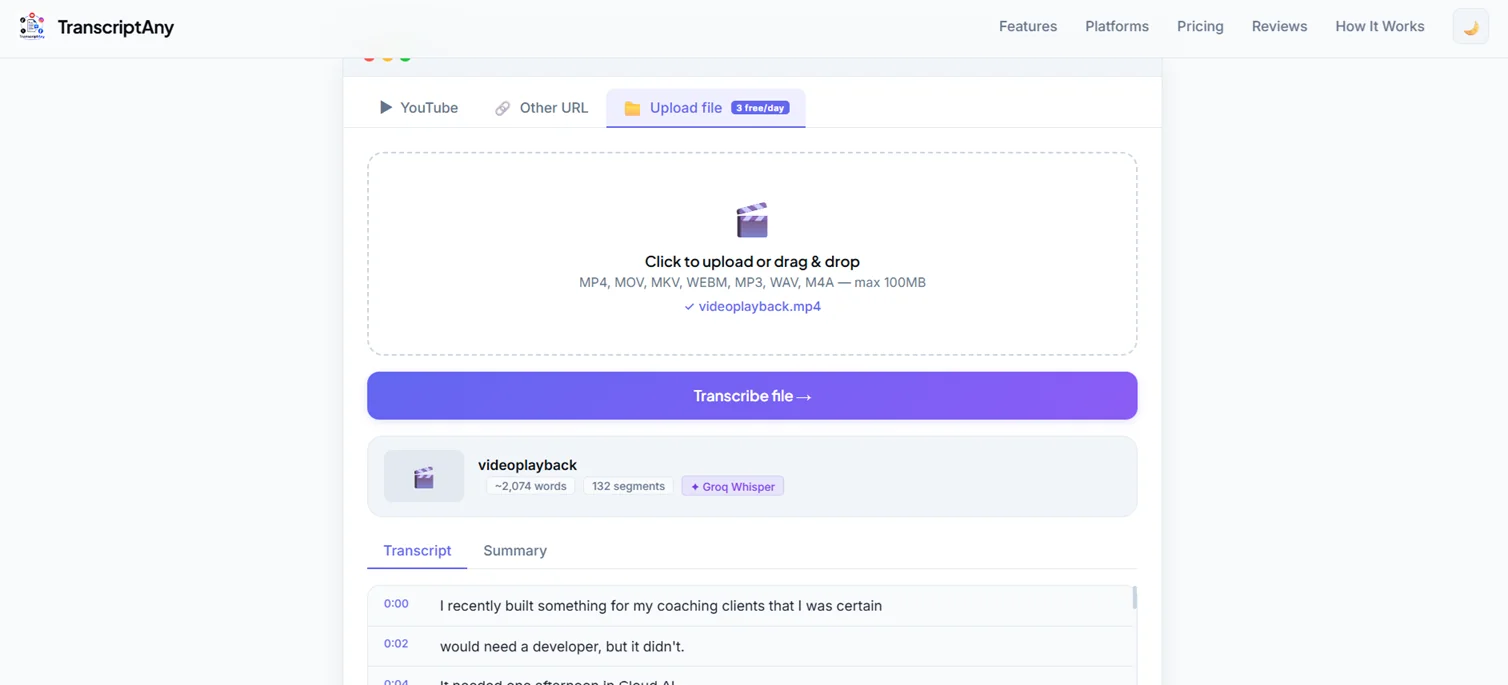
You'll also see basic info about the file: word count, number of segments, and the transcription engine used.
Step 3: Download the Transcript
Once your transcript is ready, TranscriptAny gives you multiple ways to save and reuse it:
- Copy Text — copy the full transcript instantly
- .txt with timestamps — great for reference or editing workflows
- .srt — a subtitle file, ready to sync with your video
- .pdf — for sharing or printing
- .docx — Word document export (Pro)
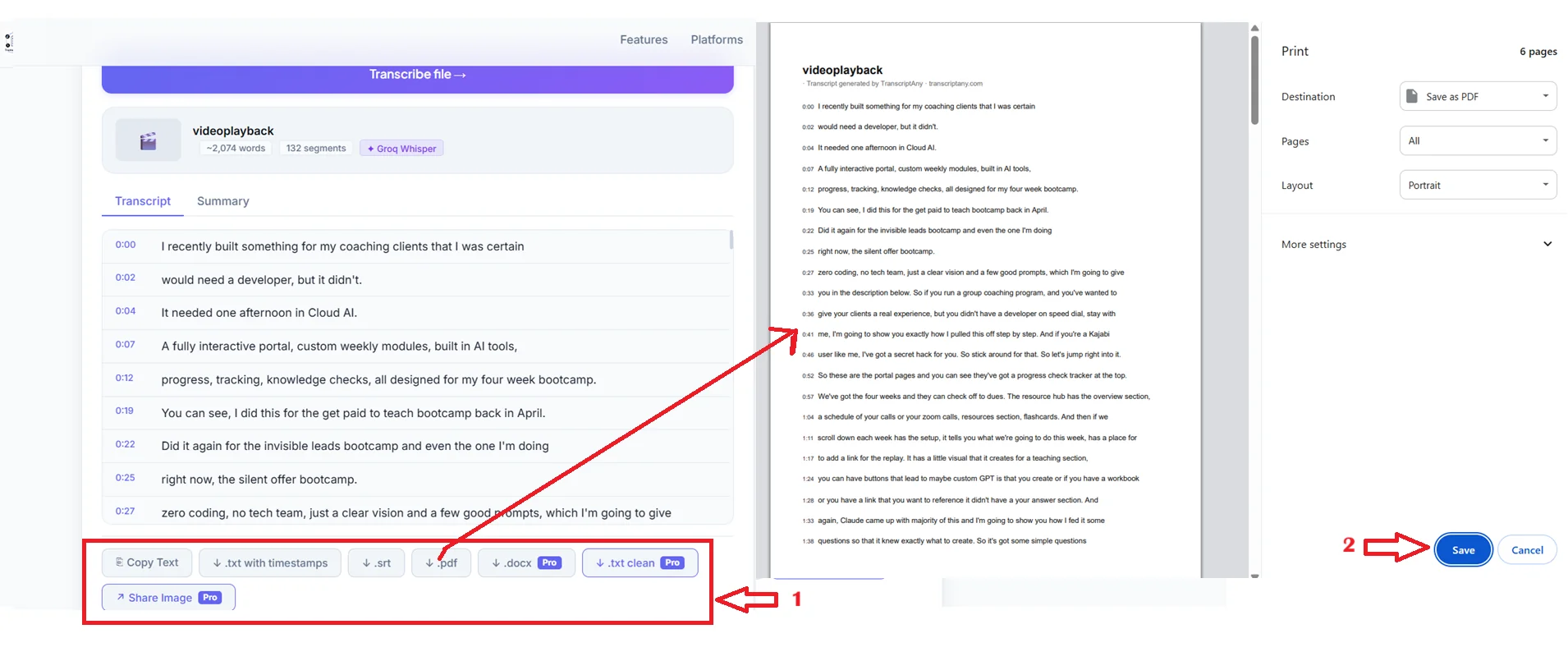
If you're adding subtitles to the original video, the .srt file drops straight into most video editors, already timed to match the audio.
Step 4: Get an AI Summary
For longer video files — webinars, training sessions, recorded meetings — reading the entire transcript isn't always necessary. TranscriptAny can also generate an AI summary and key takeaways from the video's content.
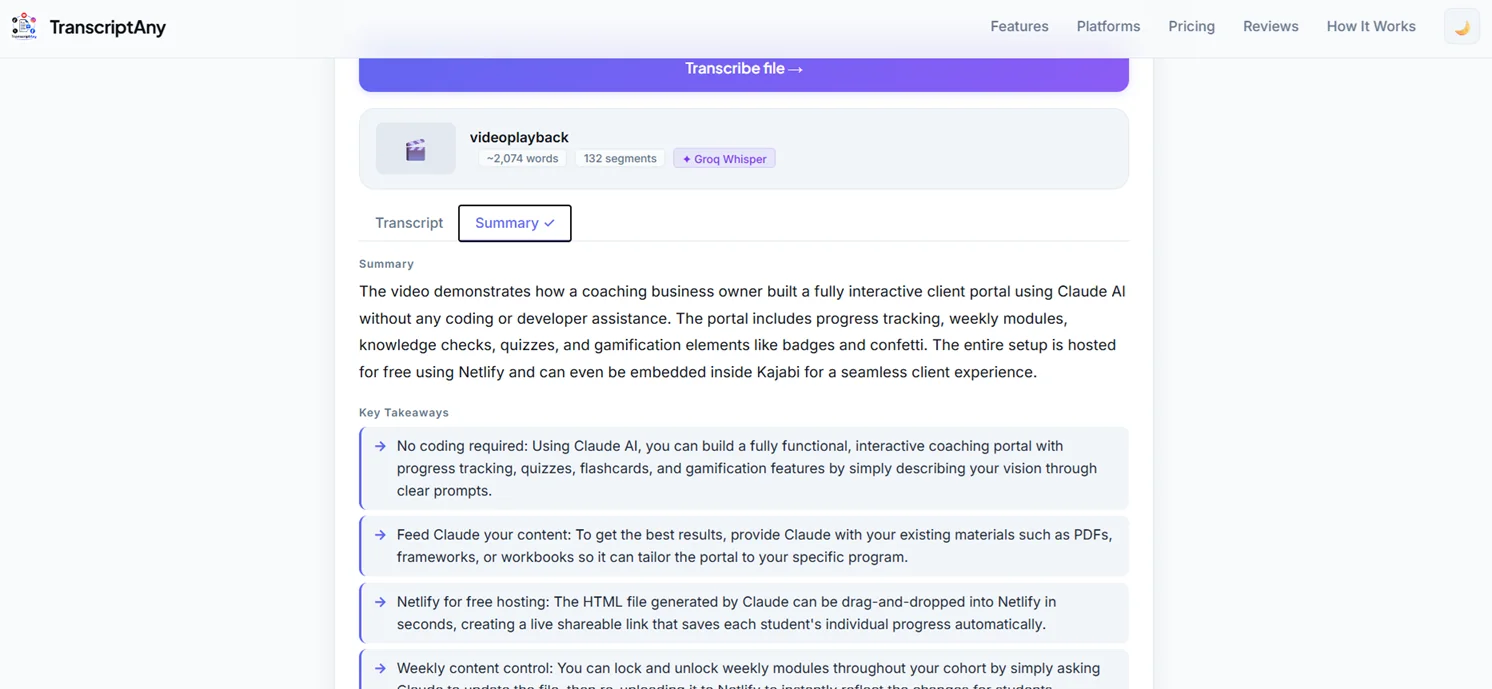
This makes it easy to get the core points of a long recording without reading thousands of words.
What's the Maximum File Size?
You can upload MP4 files up to 100MB for free — enough for most short-to-medium length videos, recorded lessons, and webinars.
What Languages Are Supported?
TranscriptAny supports 50+ languages, with the language automatically detected from the video's audio — no manual selection needed.
Is It Free?
Yes. File uploads include a limited free daily allowance, so you can transcribe MP4s at no cost. A Pro plan is available if you need more transcriptions per day or additional export formats like .docx.
Try It Yourself
Upload any MP4 file and try TranscriptAny free — no software to install, no account needed, just instant results.
Convert MP4 to Text Now — Free →